-
1
Solving: We couldn’t connect to the Analysis Services server. Make sure you’ve entered the connection string correctly
- 1.1 Scenario
- 1.2 Root cause
- 1.3 Solution
- 1.4 1) Get SQL Server Instance Name
- 1.5 2) Create Server Alias
- 1.6 3) Add DB Server Alias to Environment System Variables
- 1.7 4) Restart Power BI Report Server Service
- 1.8 5) Update the Data Source settings
- 1.9 6) Add DB Server IP and Hostname to “Hosts” file
- 1.10 7) Enable TLS encryption
In this article, we are going to fix this issue “We couldn’t connect to the Analysis Services server. Make sure you’ve entered the connection string correctly” that we recently faced after updating the Power BI Report Server to the latest version May 2025.
Solving: We couldn’t connect to the Analysis Services server. Make sure you’ve entered the connection string correctly
Scenario
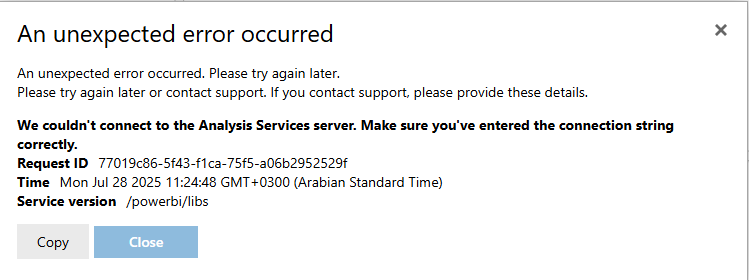
When we recently upgraded Power BI Report Server to the latest May 2025 version, we ran into a critical issue. After the upgrade, reports that were connected to SQL Server stopped working and started showing this error:
We couldn’t connect to the Analysis Services server. Make sure you’ve entered the connection string correctly.
This article explains the root cause and solution that helped us fix the problem.
Root cause
The real reason is that starting from the May 2024 version, Power BI Report Server no longer supports non-encrypted connections to SQL Server.
What does it mean?
- Starting with recent PBIRS updates (like May 2024), Microsoft tightened security for certain connections, especially when trusted/untrusted servers are involved.
- Now, if your report connects to certain data sources (like SQL Server, Analysis Services, or other relational DBs) without encryption or across servers, PBIRS checks whether the target server is considered trusted.
- If the server is not explicitly marked as trusted, the connection may fail — even if your connection string looks correct.
To handle this, Microsoft introduced the PBI_SQL_TRUSTED_SERVERS environment variable.
What is PBI_SQL_TRUSTED_SERVERS?
It’s a Windows environment variable that you set on the machine running Power BI Report Server.
- This variable contains a list of SQL Servers that PBIRS is allowed to connect to.
- By default, it is empty → which means PBIRS will block certain connections unless you explicitly “allow” the server.
- If your reports connect to a SQL Server called SQLPROD01.domain.com, you must add it to the trusted list.
For more details, please check the Power BI Report Server Changelog
In Short, this message, “We couldn’t connect to the Analysis Services server. Make sure you’ve entered the connection string correctly,” means you now need to explicitly whitelist SQL Server machines by adding them to the PBI_SQL_TRUSTED_SERVERS environment variable on your Power BI Report Server machine.
Without this, PBIRS will block certain data connections for security reasons.
Solution
Here are the steps that solved the issue for us:
- Get SQL Server Instance Name
- Create DB Server Alias
- Add DB Server Alias to Environment System Variables
- Restart Power BI Report Server Service
- Update the Data Source settings
- Add DB Server IP and Hostname to “Hosts” file
- Enable TLS encryption
1) Get SQL Server Instance Name
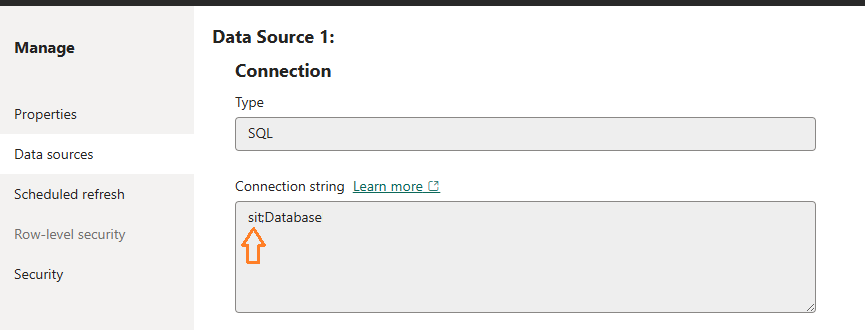
- Open your Report Server Web Portal
- Navigate to your dashboard file, click on the “…” to the option list, select “Manage” -> “Data Sources”.
- In “Connection String” section, you will find “DBServerName\Instance;DatabaseName“.
2) Create Server Alias
No matter if your Database Server Name includes an instance or even a port, it’s recommended to create a Server Alias.
For example, if your SQL instance is defined as:
DBServer\DBInstance:14150then you should create a SQL Server Alias and use that alias when adding it to the Environment System Variables.
How to Create Server Alias for database server
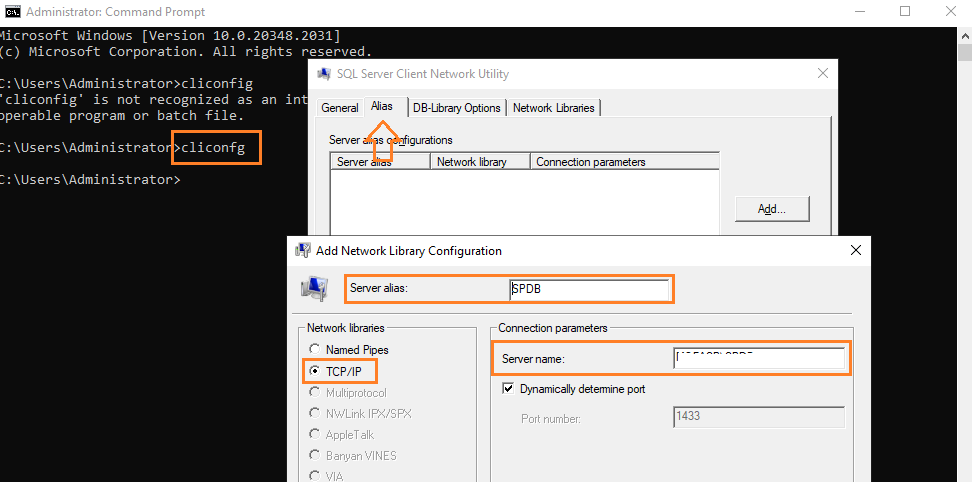
- Open CMD as Administroator.
- Type “CLIConfg“, to open “SQL Server Client Network Utility”.
- Click on “Alias” -> “TCP/IP“-> Provide the “Server Alias Name” as you prefer.
- Provide “Server Name“, and uncheck dynamic port, and provide the “Port” number if you don’t use the default one.
3) Add DB Server Alias to Environment System Variables
As we earlier mentioned, in the May 2024 Power BI Report Server Update, A recent security change requires a privileged user to apply the “PBI_SQL_TRUSTED_SERVERS” environment variable on their Power BI Report Server machine for certain data types.
Read more details in the article, SQL Server certificate isn’t trusted on the client.
So, in this case, you have to add “DB Server Alias” to Environment System Variables by doing the following:
Steps
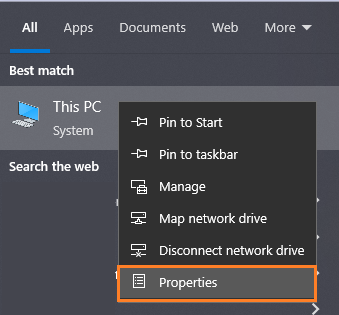
- Right Click on “This PC” -> Select “Properties“.
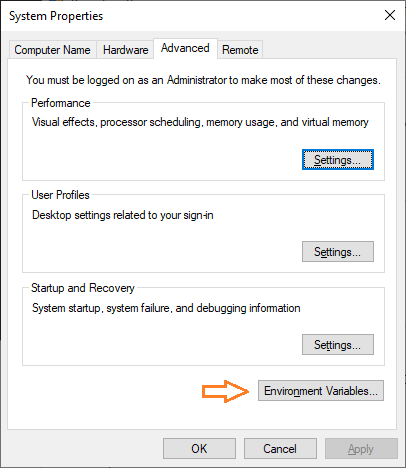
- Click on “Advanced System Settings” -> Click on “Environment Variables“.
- Below “System Environment” -> Click on “New“
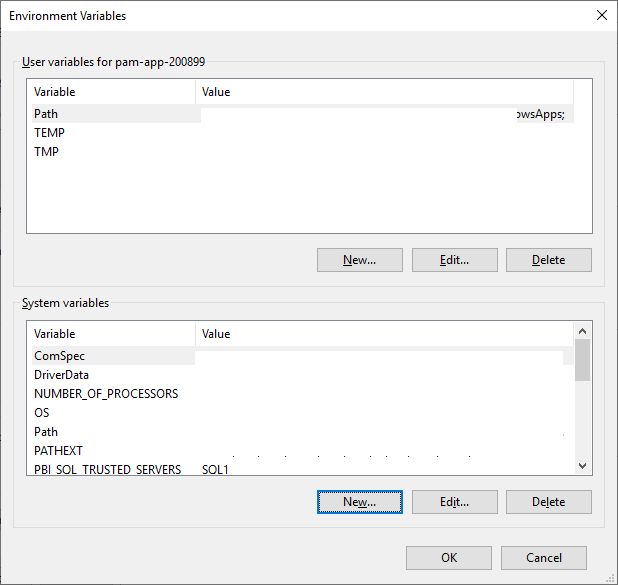
- Set the “Variable Name” to “PBI_SQL_TRUSTED_SERVERS“.
- Set the “Variable value” to “Newly Created Server Alias Name”, in our case, it’s “SPDB“.
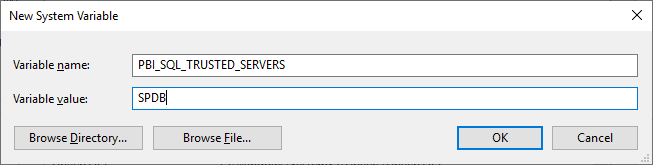
In case, you have multiple servers, add it as the following: SPDB1,SPDB2 (Comma Seperated).
4) Restart Power BI Report Server Service
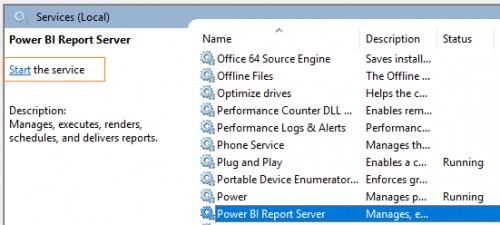
- On the Power BI Report Server, Open “Services“
- Search for the “Power BI Report Server” Service, and restart it.
5) Update the Data Source settings
- Open the Power BI Report Server Web Portal
- Navigate to your dashboard, and Edit it in Power BI Desktop
Ensure, you have using the optimized Power BI desktop for Power BI Report Server as mentioned at Missing Save To Power BI Report Server In Power BI Desktop
- Go to “Transform Data“, and select “Data Source Settings“.
- Select your “Data Source“, and click on “Change Source“.
- At “Server“, add the “Server Alias Name”
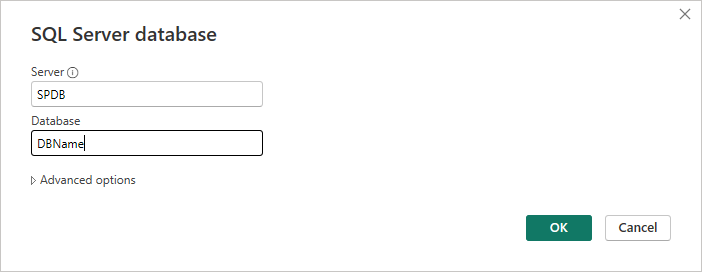
- Apply the changes, and then Save the file.
Go back to the portal, and reopen the dashboard, you will note that the error “We couldn’t connect to the Analysis Services server. Make sure you’ve entered the connection string correctly” is gone, and the issue has been solved.
6) Add DB Server IP and Hostname to “Hosts” file
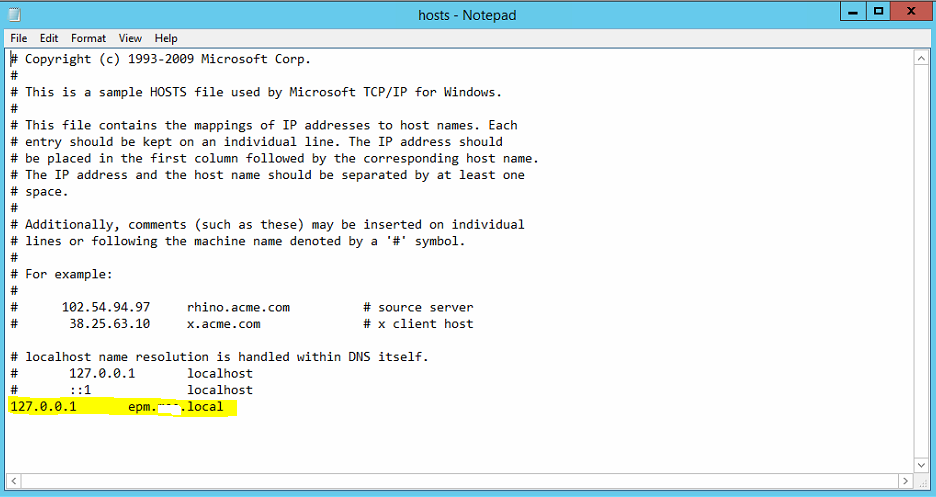
If the issue still persist, so you have to add the DB Server IP to the Hosts File as the following:
- Navigate to the below path.
C:\Windows\System32\drivers\etc
- Open “hosts” file via an appropriate editor.
- Add the current server IP > click Tab from keyboard > add the URL.
7) Enable TLS encryption
If you have followed all the troubleshooting steps and the problem still persists, the next thing to check is TLS encryption on the database server.
In our case, the issue was that the SQL Server instance did not have TLS encryption enabled. Once we enabled TLS on the database server and configured it to use a valid SSL/TLS certificate, the connection started working.
We then imported the same certificate into the Power BI Report Server machine to ensure trust between both ends. After that, reports connected successfully without showing the connection error.
Conclusion
The newer versions of Power BI Report Server no longer support non-encrypted connections to SQL Server. To make it work, you have two options:
- Explicitly whitelist SQL Server machines by adding them to the
PBI_SQL_TRUSTED_SERVERSenvironment variable on your Power BI Report Server machine. - Configure encrypted connections (TLS/SSL) on your SQL Server and ensure the certificate is properly trusted by the Report Server machine.