
In this post, we will learn how to format date in Power Automate and how to change date format in Power Automate in different date formats like dd/MM/yyyy, MM/dd/yyyy …etc
Date Format in Power Automate
Power Automate is one of the four products of the Microsoft Power Platform which is a cloud-based automation platform that allows users to build automated processes across different apps and services in no-code/low-code.
In Power Automate, if you tried to use a date field in your flow in an Email body or a Microsoft Team message, you will note that the default date format in Power Automat is shown as in this format YYYY-MM-ddT21:00:00.000Z even you have formatted the date field in your data source with your desired format!
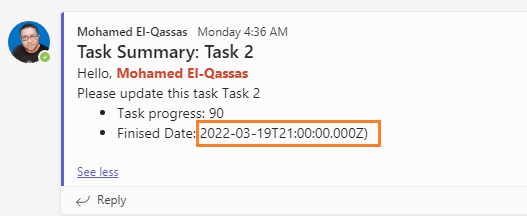
In many cases, the default Power Automate Date format is not acceptable to be used, and you may need to format date in Power Automate in different date formats like dd/MM/yyyy, MM/dd/yyyy …etc
How to Format Date in Power Automate?
Consider, you have a table with a date column as shown below

And you need to create a Power Automat flow to send an email or post a Microsoft Team Message for each user in this table based on specific criteria.
In the message/email body, you need to send the task details like Task Name, and its finished date.
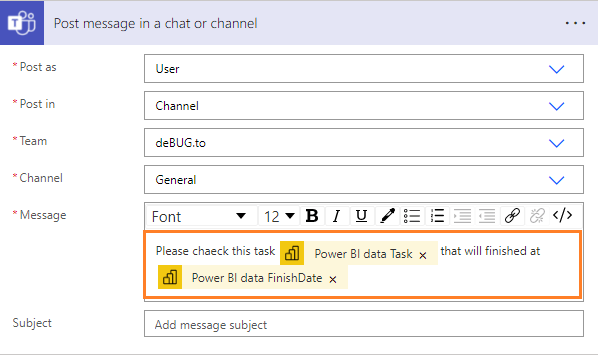
But when you send the date in Microsoft Team message or email body from Power Automate, you will note that the Power Automate Date format is shown in a standard format that may not match your requirements as below.
To Format Date in Power Automate, you have to do the following:
- Ensure that your field holds a value in a correct date fromat.
- Create a new variable with a string format outside your loop
- Set the created variable to the date value.
- Use the FormatDateTime() function in Power Automate.
1) Ensure Date Field Fomat
Regardless of your current data source, you have first to make sure that the current field value is in a correct date format to ensure that your flow will work as expected.
In our example, we have a “Finish Date” column in a correct date format that will be used in our Email body in Power Automate.
2) Create a new variable in Power Automate
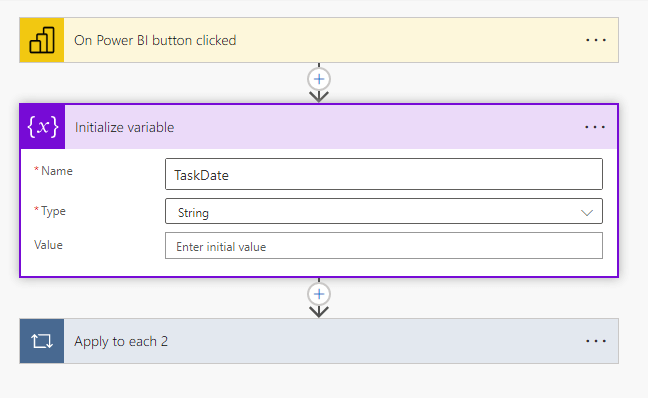
Due to our flow will loop for each row in our table, you have to initialize a new variable outside this loop.
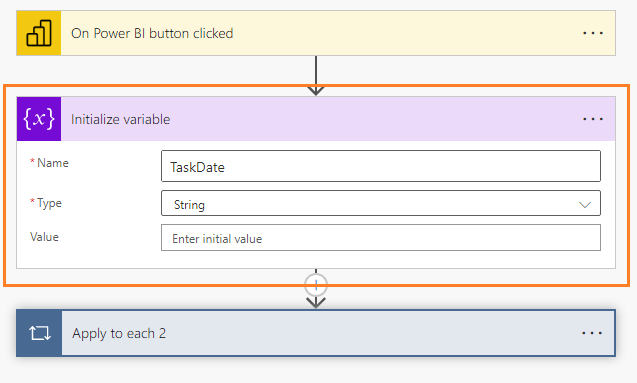
How to Create a Variable in Power Automate?
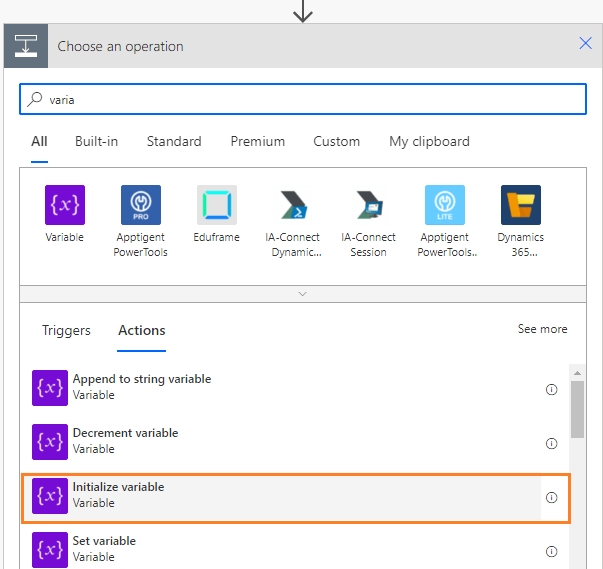
To initialize or create a new variable in Power Automate to be outside your loop, you have to do the following:
- Between the trigger and the loop, click on the Plus icon to insert a new step as action.
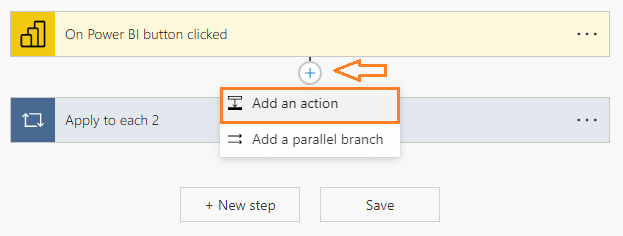
- Search for Variables, and from the variable search result, select “Initialize Variable“.
- Set the Variable name as you prefer, then set the variable data type to “String”.
3) Set a variable in Power Automate
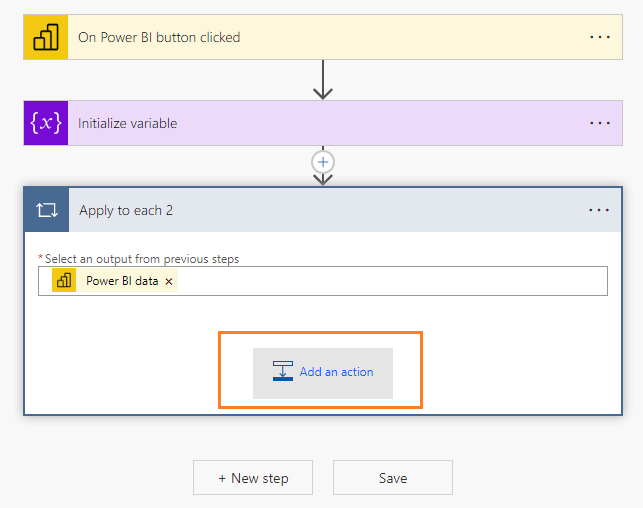
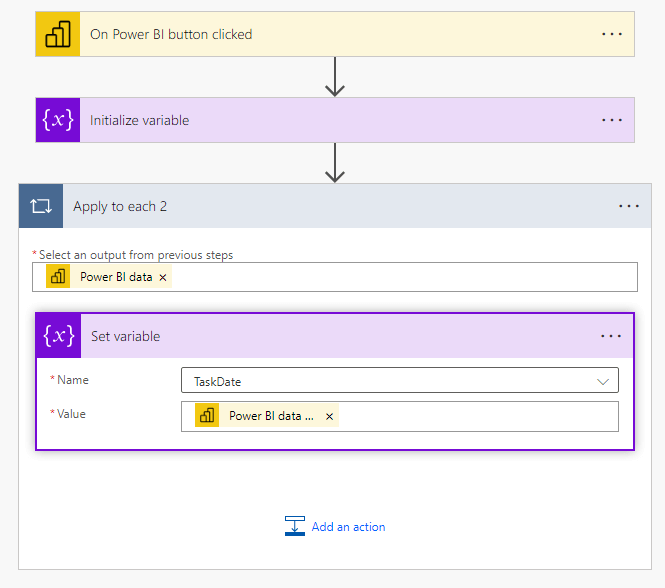
Now you have to set the date value to the newly created variable In your loop by doing the following:
- In your loop, add a new action.
- Search for variables, and then select “Set Variable” action.
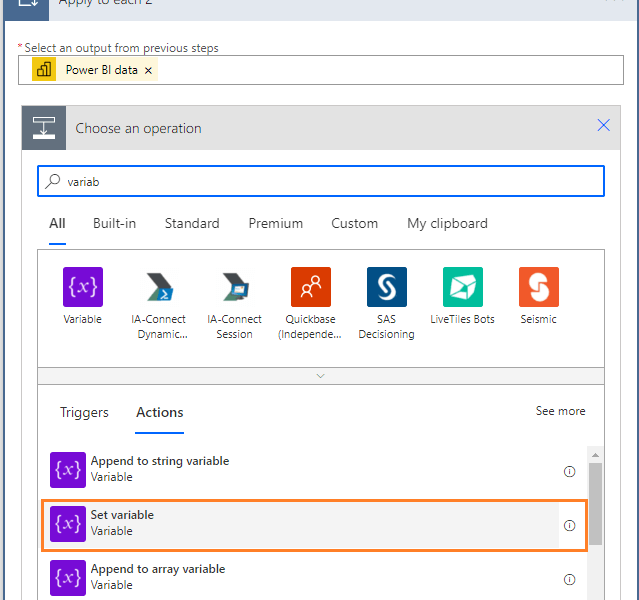
- Finally, in “Set Variable” action, select the variable name and the date field name.
4) Use FormatDateTime() in Power Automate
After setting the date variable with the date field, you can now use the FormatDateTime() in Power Automate to format your date in different date formats like dd/MM/yyyy, MM/dd/yyyy …etc
To format Date in Power Automate using FormatDateTime() function, you have to do the following:
- Below the “Set Variable” action, add another action to send Email or Post Microsoft Teams message to a specific channel for specific user as you need.
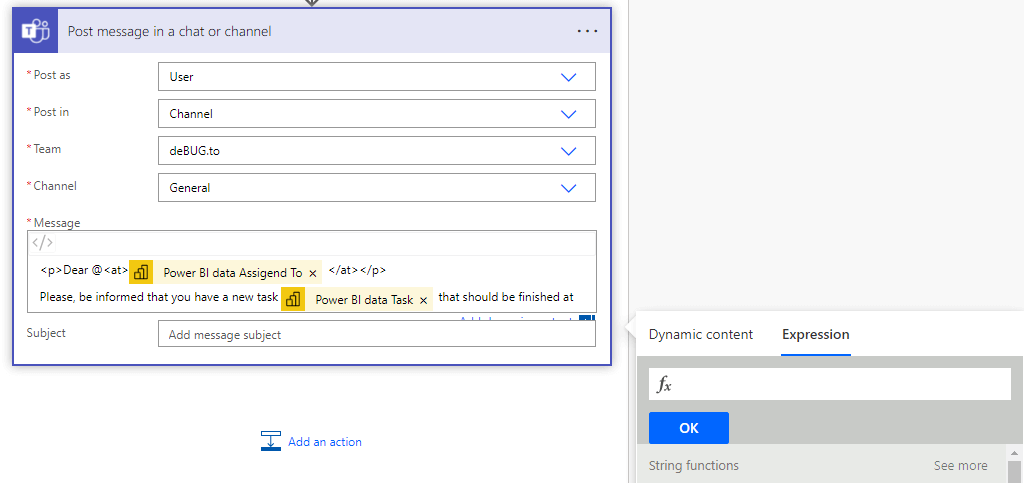
- In messae body, add new expression with the below function based on your variable name and the required date format.
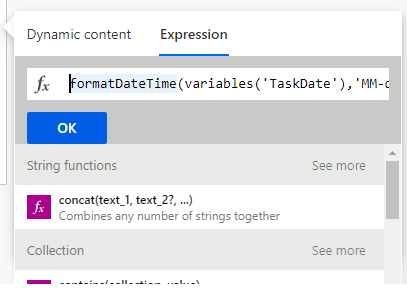
formatDateTime(variables('VariableName'),'MM-dd-yyyy')- Click Ok to add the FormatDateTime function in your message body.
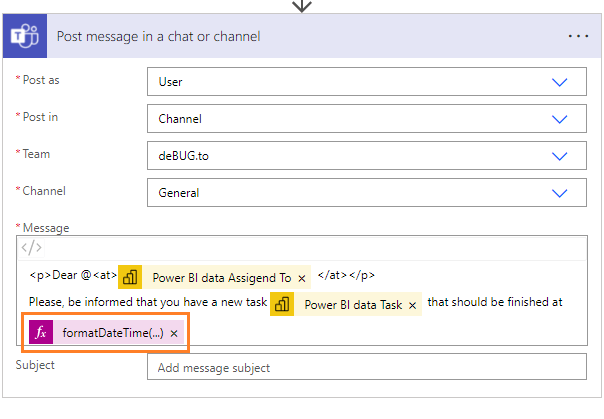
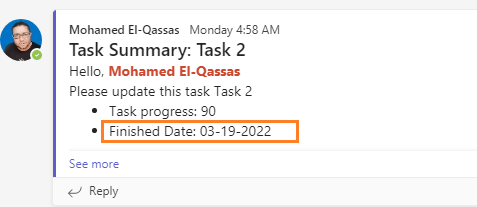
- Now, test and run your flow, you should note that the Power Automate Date format is sent to your chanel with the desired date fromat that was used in the FormatDateTime() function.
Format current date in Power Automate
In some scenarios, you may also need to send the current date in your email body or Microsoft Teams message, so in this case, you can easily use the utcNow() function from the expression section to send the current date.
utcNow()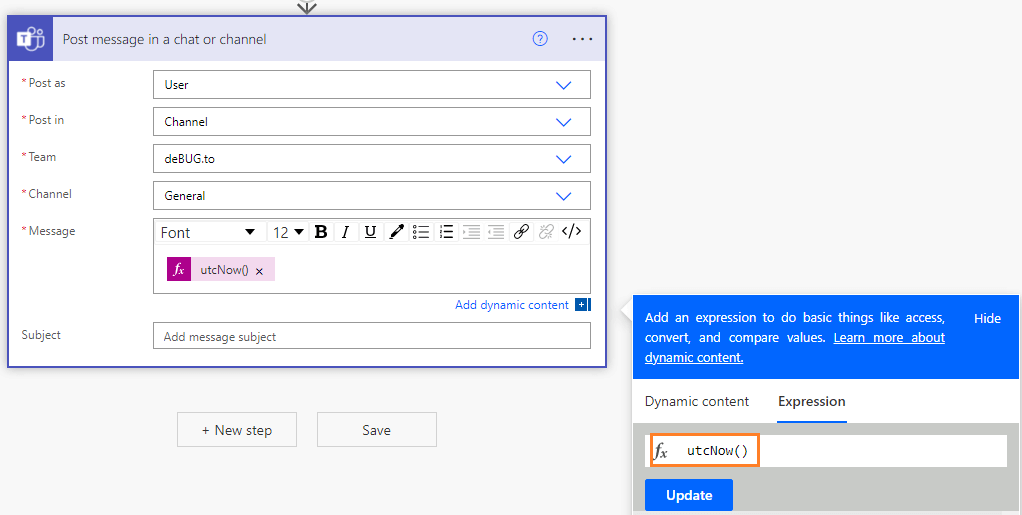
However, you will note that the current date is sent in a format that may be not suitable for you as below:
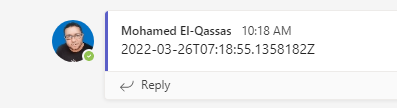
To fix this issue and format the current date in Power Automate, you have also to use the formatDateTime() as the following:
formatDateTime(utcNow(),'MM-dd-yyyy')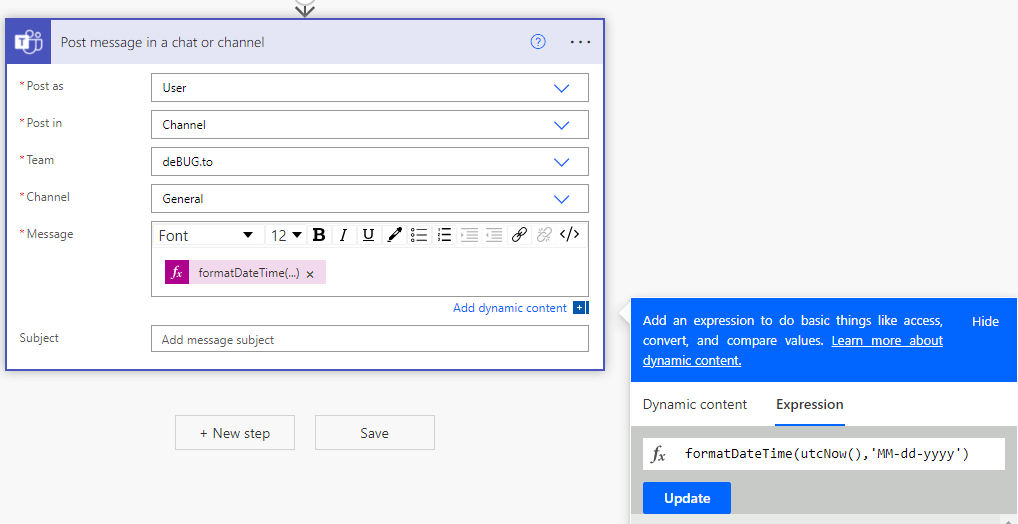
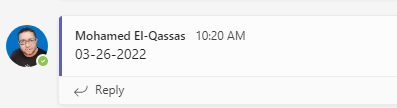
Great, the current date has been formatted in ‘MM-dd-yyyy’ format after using formatDateTime() in Power Automate as shown below.
Standard date and time format specifiers
To format date in Power Automat in different dates format as you desire, you have to check the following table that describes the standard date and time format specifiers.
| Format specifier | Description | Examples |
|---|---|---|
| “d” | Short date pattern. More information:The short date (“d”) format specifier. | 2009-06-15T13:45:30 -> 6/15/2009 (en-US) 2009-06-15T13:45:30 -> 15/06/2009 (fr-FR) 2009-06-15T13:45:30 -> 2009/06/15 (ja-JP) |
| “D” | Long date pattern. More information:The long date (“D”) format specifier. | 2009-06-15T13:45:30 -> Monday, June 15, 2009 (en-US) 2009-06-15T13:45:30 -> 15 июня 2009 г. (ru-RU) 2009-06-15T13:45:30 -> Montag, 15. Juni 2009 (de-DE) |
| “f” | Full date/time pattern (short time). More information: The full date short time (“f”) format specifier. | 2009-06-15T13:45:30 -> Monday, June 15, 2009 1:45 PM (en-US) 2009-06-15T13:45:30 -> den 15 juni 2009 13:45 (sv-SE) 2009-06-15T13:45:30 -> Δευτέρα, 15 Ιουνίου 2009 1:45 μμ (el-GR) |
| “F” | Full date/time pattern (long time). More information: The full date long time (“F”) format specifier. | 2009-06-15T13:45:30 -> Monday, June 15, 2009 1:45:30 PM (en-US) 2009-06-15T13:45:30 -> den 15 juni 2009 13:45:30 (sv-SE) 2009-06-15T13:45:30 -> Δευτέρα, 15 Ιουνίου 2009 1:45:30 μμ (el-GR) |
| “g” | General date/time pattern (short time). More information: The general date short time (“g”) format specifier. | 2009-06-15T13:45:30 -> 6/15/2009 1:45 PM (en-US) 2009-06-15T13:45:30 -> 15/06/2009 13:45 (es-ES) 2009-06-15T13:45:30 -> 2009/6/15 13:45 (zh-CN) |
| “G” | General date/time pattern (long time). More information: The general date long time (“G”) format specifier. | 2009-06-15T13:45:30 -> 6/15/2009 1:45:30 PM (en-US) 2009-06-15T13:45:30 -> 15/06/2009 13:45:30 (es-ES) 2009-06-15T13:45:30 -> 2009/6/15 13:45:30 (zh-CN) |
| “M”, “m” | Month/day pattern. More information: The month (“M”, “m”) format specifier. | 2009-06-15T13:45:30 -> June 15 (en-US) 2009-06-15T13:45:30 -> 15. juni (da-DK) 2009-06-15T13:45:30 -> 15 Juni (id-ID) |
| “O”, “o” | round-trip date/time pattern. More information: The round-trip (“O”, “o”) format specifier. | DateTime values: 2009-06-15T13:45:30 (DateTimeKind.Local) –> 2009-06-15T13:45:30.0000000-07:00 2009-06-15T13:45:30 (DateTimeKind.Utc) –> 2009-06-15T13:45:30.0000000Z 2009-06-15T13:45:30 (DateTimeKind.Unspecified) –> 2009-06-15T13:45:30.0000000 DateTimeOffset values: 2009-06-15T13:45:30-07:00 –> 2009-06-15T13:45:30.0000000-07:00 |
| “R”, “r” | RFC1123 pattern. More information: The RFC1123 (“R”, “r”) format specifier. | 2009-06-15T13:45:30 -> Mon, 15 Jun 2009 20:45:30 GMT |
| “s” | Sortable date/time pattern. More information: The sortable (“s”) format specifier. | 2009-06-15T13:45:30 (DateTimeKind.Local) -> 2009-06-15T13:45:30 2009-06-15T13:45:30 (DateTimeKind.Utc) -> 2009-06-15T13:45:30 |
| “t” | Short time pattern. More information: The short time (“t”) format specifier. | 2009-06-15T13:45:30 -> 1:45 PM (en-US) 2009-06-15T13:45:30 -> 13:45 (hr-HR) 2009-06-15T13:45:30 -> 01:45 م (ar-EG) |
| “T” | Long time pattern. More information: The long time (“T”) format specifier. | 2009-06-15T13:45:30 -> 1:45:30 PM (en-US) 2009-06-15T13:45:30 -> 13:45:30 (hr-HR) 2009-06-15T13:45:30 -> 01:45:30 م (ar-EG) |
| “u” | Universal sortable date/time pattern. More information: The universal sortable (“u”) format specifier. | With a DateTime value: 2009-06-15T13:45:30 -> 2009-06-15 13:45:30Z With a DateTimeOffset value: 2009-06-15T13:45:30 -> 2009-06-15 20:45:30Z |
| “U” | Universal full date/time pattern. More information: The universal full (“U”) format specifier. | 2009-06-15T13:45:30 -> Monday, June 15, 2009 8:45:30 PM (en-US) 2009-06-15T13:45:30 -> den 15 juni 2009 20:45:30 (sv-SE) 2009-06-15T13:45:30 -> Δευτέρα, 15 Ιουνίου 2009 8:45:30 μμ (el-GR) |
| “Y”, “y” | Year month pattern. More information: The year month (“Y”) format specifier. | 2009-06-15T13:45:30 -> June 2009 (en-US) 2009-06-15T13:45:30 -> juni 2009 (da-DK) 2009-06-15T13:45:30 -> Juni 2009 (id-ID) |
| Any other single character | Unknown specifier. | Throws a run-time FormatException. |
The following table also describes the custom date and time format specifiers and displays a result string produced by each format specifier.
| Format specifier | Description | Examples |
|---|---|---|
| “d” | The day of the month, from 1 through 31. More information: The “d” Custom Format Specifier. | 2009-06-01T13:45:30 -> 1 2009-06-15T13:45:30 -> 15 |
| “dd” | The day of the month, from 01 through 31. More information: The “dd” Custom Format Specifier. | 2009-06-01T13:45:30 -> 01 2009-06-15T13:45:30 -> 15 |
| “ddd” | The abbreviated name of the day of the week. More information: The “ddd” Custom Format Specifier. | 2009-06-15T13:45:30 -> Mon (en-US) 2009-06-15T13:45:30 -> Пн (ru-RU) 2009-06-15T13:45:30 -> lun. (fr-FR) |
| “dddd” | The full name of the day of the week. More information: The “dddd” Custom Format Specifier. | 2009-06-15T13:45:30 -> Monday (en-US) 2009-06-15T13:45:30 -> понедельник (ru-RU) 2009-06-15T13:45:30 -> lundi (fr-FR) |
| “f” | The tenths of a second in a date and time value. More information: The “f” Custom Format Specifier. | 2009-06-15T13:45:30.6170000 -> 6 2009-06-15T13:45:30.05 -> 0 |
| “ff” | The hundredths of a second in a date and time value. More information: The “ff” Custom Format Specifier. | 2009-06-15T13:45:30.6170000 -> 61 2009-06-15T13:45:30.0050000 -> 00 |
| “fff” | The milliseconds in a date and time value. More information: The “fff” Custom Format Specifier. | 6/15/2009 13:45:30.617 -> 617 6/15/2009 13:45:30.0005 -> 000 |
| “ffff” | The ten thousandths of a second in a date and time value. More information: The “ffff” Custom Format Specifier. | 2009-06-15T13:45:30.6175000 -> 6175 2009-06-15T13:45:30.0000500 -> 0000 |
| “fffff” | The hundred thousandths of a second in a date and time value. More information: The “fffff” Custom Format Specifier. | 2009-06-15T13:45:30.6175400 -> 61754 6/15/2009 13:45:30.000005 -> 00000 |
| “ffffff” | The millionths of a second in a date and time value. More information: The “ffffff” Custom Format Specifier. | 2009-06-15T13:45:30.6175420 -> 617542 2009-06-15T13:45:30.0000005 -> 000000 |
| “fffffff” | The ten millionths of a second in a date and time value. More information: The “fffffff” Custom Format Specifier. | 2009-06-15T13:45:30.6175425 -> 6175425 2009-06-15T13:45:30.0001150 -> 0001150 |
| “F” | If non-zero, the tenths of a second in a date and time value. More information: The “F” Custom Format Specifier. | 2009-06-15T13:45:30.6170000 -> 6 2009-06-15T13:45:30.0500000 -> (no output) |
| “FF” | If non-zero, the hundredths of a second in a date and time value. More information: The “FF” Custom Format Specifier. | 2009-06-15T13:45:30.6170000 -> 61 2009-06-15T13:45:30.0050000 -> (no output) |
| “FFF” | If non-zero, the milliseconds in a date and time value. More information: The “FFF” Custom Format Specifier. | 2009-06-15T13:45:30.6170000 -> 617 2009-06-15T13:45:30.0005000 -> (no output) |
| “FFFF” | If non-zero, the ten thousandths of a second in a date and time value. More information: The “FFFF” Custom Format Specifier. | 2009-06-15T13:45:30.5275000 -> 5275 2009-06-15T13:45:30.0000500 -> (no output) |
| “FFFFF” | If non-zero, the hundred thousandths of a second in a date and time value. More information: The “FFFFF” Custom Format Specifier. | 2009-06-15T13:45:30.6175400 -> 61754 2009-06-15T13:45:30.0000050 -> (no output) |
| “FFFFFF” | If non-zero, the millionths of a second in a date and time value. More information: The “FFFFFF” Custom Format Specifier. | 2009-06-15T13:45:30.6175420 -> 617542 2009-06-15T13:45:30.0000005 -> (no output) |
| “FFFFFFF” | If non-zero, the ten millionths of a second in a date and time value. More information: The “FFFFFFF” Custom Format Specifier. | 2009-06-15T13:45:30.6175425 -> 6175425 2009-06-15T13:45:30.0001150 -> 000115 |
| “g”, “gg” | The period or era. More information: The “g” or “gg” Custom Format Specifier. | 2009-06-15T13:45:30.6170000 -> A.D. |
| “h” | The hour, using a 12-hour clock from 1 to 12. More information: The “h” Custom Format Specifier. | 2009-06-15T01:45:30 -> 1 2009-06-15T13:45:30 -> 1 |
| “hh” | The hour, using a 12-hour clock from 01 to 12. More information: The “hh” Custom Format Specifier. | 2009-06-15T01:45:30 -> 01 2009-06-15T13:45:30 -> 01 |
| “H” | The hour, using a 24-hour clock from 0 to 23. More information: The “H” Custom Format Specifier. | 2009-06-15T01:45:30 -> 1 2009-06-15T13:45:30 -> 13 |
| “HH” | The hour, using a 24-hour clock from 00 to 23. More information: The “HH” Custom Format Specifier. | 2009-06-15T01:45:30 -> 01 2009-06-15T13:45:30 -> 13 |
| “K” | Time zone information. More information: The “K” Custom Format Specifier. | With DateTime values: 2009-06-15T13:45:30, Kind Unspecified -> 2009-06-15T13:45:30, Kind Utc -> Z 2009-06-15T13:45:30, Kind Local -> -07:00 (depends on local computer settings) With DateTimeOffset values: 2009-06-15T01:45:30-07:00 –> -07:00 2009-06-15T08:45:30+00:00 –> +00:00 |
| “m” | The minute, from 0 through 59. More information: The “m” Custom Format Specifier. | 2009-06-15T01:09:30 -> 9 2009-06-15T13:29:30 -> 29 |
| “mm” | The minute, from 00 through 59. More information: The “mm” Custom Format Specifier. | 2009-06-15T01:09:30 -> 09 2009-06-15T01:45:30 -> 45 |
| “M” | The month, from 1 through 12. More information: The “M” Custom Format Specifier. | 2009-06-15T13:45:30 -> 6 |
| “MM” | The month, from 01 through 12. More information: The “MM” Custom Format Specifier. | 2009-06-15T13:45:30 -> 06 |
| “MMM” | The abbreviated name of the month. More information: The “MMM” Custom Format Specifier. | 2009-06-15T13:45:30 -> Jun (en-US) 2009-06-15T13:45:30 -> juin (fr-FR) 2009-06-15T13:45:30 -> Jun (zu-ZA) |
| “MMMM” | The full name of the month. More information: The “MMMM” Custom Format Specifier. | 2009-06-15T13:45:30 -> June (en-US) 2009-06-15T13:45:30 -> juni (da-DK) 2009-06-15T13:45:30 -> uJuni (zu-ZA) |
| “s” | The second, from 0 through 59. More information: The “s” Custom Format Specifier. | 2009-06-15T13:45:09 -> 9 |
| “ss” | The second, from 00 through 59. More information: The “ss” Custom Format Specifier. | 2009-06-15T13:45:09 -> 09 |
| “t” | The first character of the AM/PM designator. More information: The “t” Custom Format Specifier. | 2009-06-15T13:45:30 -> P (en-US) 2009-06-15T13:45:30 -> 午 (ja-JP) 2009-06-15T13:45:30 -> (fr-FR) |
| “tt” | The AM/PM designator. More information: The “tt” Custom Format Specifier. | 2009-06-15T13:45:30 -> PM (en-US) 2009-06-15T13:45:30 -> 午後 (ja-JP) 2009-06-15T13:45:30 -> (fr-FR) |
| “y” | The year, from 0 to 99. More information: The “y” Custom Format Specifier. | 0001-01-01T00:00:00 -> 1 0900-01-01T00:00:00 -> 0 1900-01-01T00:00:00 -> 0 2009-06-15T13:45:30 -> 9 2019-06-15T13:45:30 -> 19 |
| “yy” | The year, from 00 to 99. More information: The “yy” Custom Format Specifier. | 0001-01-01T00:00:00 -> 01 0900-01-01T00:00:00 -> 00 1900-01-01T00:00:00 -> 00 2019-06-15T13:45:30 -> 19 |
| “yyy” | The year, with a minimum of three digits. More information: The “yyy” Custom Format Specifier. | 0001-01-01T00:00:00 -> 001 0900-01-01T00:00:00 -> 900 1900-01-01T00:00:00 -> 1900 2009-06-15T13:45:30 -> 2009 |
| “yyyy” | The year as a four-digit number. More information: The “yyyy” Custom Format Specifier. | 0001-01-01T00:00:00 -> 0001 0900-01-01T00:00:00 -> 0900 1900-01-01T00:00:00 -> 1900 2009-06-15T13:45:30 -> 2009 |
| “yyyyy” | The year as a five-digit number. More information: The “yyyyy” Custom Format Specifier. | 0001-01-01T00:00:00 -> 00001 2009-06-15T13:45:30 -> 02009 |
| “z” | Hours offset from UTC, with no leading zeros. More information: The “z” Custom Format Specifier. | 2009-06-15T13:45:30-07:00 -> -7 |
| “zz” | Hours offset from UTC, with a leading zero for a single-digit value. More information: The “zz” Custom Format Specifier. | 2009-06-15T13:45:30-07:00 -> -07 |
| “zzz” | Hours and minutes offset from UTC. More information: The “zzz” Custom Format Specifier. | 2009-06-15T13:45:30-07:00 -> -07:00 |
| “:” | The time separator. More information: The “:” Custom Format Specifier. | 2009-06-15T13:45:30 -> : (en-US) 2009-06-15T13:45:30 -> . (it-IT) 2009-06-15T13:45:30 -> : (ja-JP) |
| “/” | The date separator. More Information: The “/” Custom Format Specifier. | 2009-06-15T13:45:30 -> / (en-US) 2009-06-15T13:45:30 -> – (ar-DZ) 2009-06-15T13:45:30 -> . (tr-TR) |
| “string“ ‘string‘ | Literal string delimiter. More information: Character literals. | 2009-06-15T13:45:30 (“arr:” h:m t) -> arr: 1:45 P 2009-06-15T13:45:30 (‘arr:’ h:m t) -> arr: 1:45 P |
| % | Defines the following character as a custom format specifier. More information:Using Single Custom Format Specifiers. | 2009-06-15T13:45:30 (%h) -> 1 |
| \ | The escape character. More information: Character literals and Using the Escape Character. | 2009-06-15T13:45:30 (h \h) -> 1 h |
| Any other character | The character is copied to the result string unchanged. More information: Character literals. | 2009-06-15T01:45:30 (arr hh:mm t) -> arr 01:45 A |
Conclusion
In conclusion, we have learned how to format date in Power Automate in Email body or Microsoft Teams Message in different formats as we need.
See Also
- How to use Power Automate?
- How to use Date function in DAX Power BI?
- Power Platform and DevOps-Deploy solutions between environments
Join us
- Subscribe to Power Platform Geeks.
- Register to Saudi Arabia Power Platform User Group.
Need Help
- Have a related question? Please ask it at deBUG.to Community.